Deep dive
How to build a Ctrl+K command palette that works offline
Published · 9 min read· Anton Shubin
Seed feature: Keyboard shortcuts →
Also in: العربية, Deutsch, Español, Français, 日本語, Português (Brasil), Русский, and 简体中文

In short
- A command palette should run the app, not only search it. Pages, create actions and settings are all commands, and a setting changes the moment you press Enter.
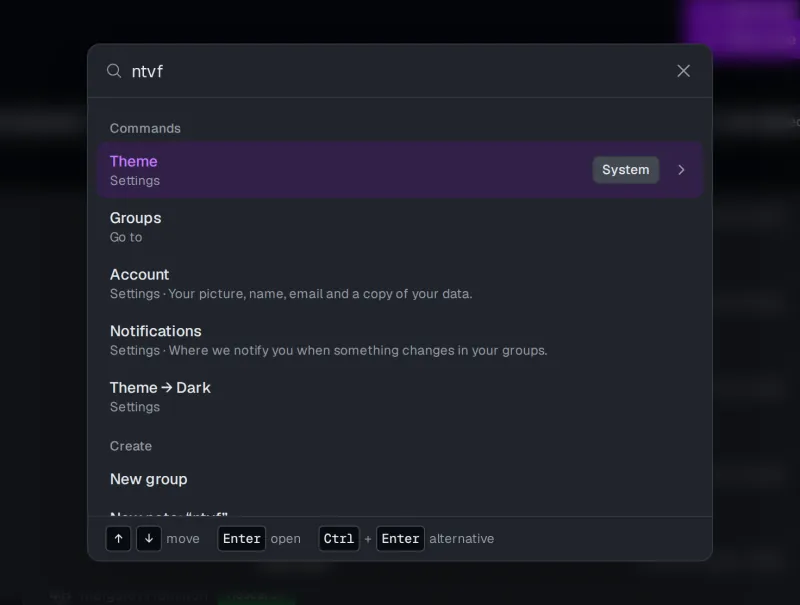
- Match word starts, allow one typo per word and read the query in the other keyboard layout. Then "notse" finds Notes and "ntvf" finds Theme.
- Never end at "No results". Offer to create what was typed, search the copy on the device when the server is out of reach, and dim what needs a connection.
- Keep it one pure list, with the app's state in and commands out. The keys come from the app's one shortcut list, so the palette and the shortcuts dialog never disagree.
To build a Ctrl+K command palette that works offline and that people keep using, make it do three things. It runs the app: every page, every "New…" and every setting is a command. It forgives how people really type: a typo, half a word, the wrong keyboard layout. And it never leaves you at a dead end: when nothing matches it offers to create what you typed, and with no network it searches the copy on your device. In Seed all of that comes from one list of commands in one file.
This post is for developers who are adding Ctrl+K to their own web app. I'll show what the palette does first, then the file it is built from, with the real code.
What should Ctrl+K do besides search?
Open the palette and type nothing. It is already useful: your last five picks under Recent, the commands of the page you are on, your latest notes, and Create. Most of my own trips to a palette are "take me back to that thing" or "do the obvious thing here", and neither should need typing.
Type > on its own and it lists everything the app can do, under five headings: This page, Go
to, Create, Settings and Account. Type anything else and the matching commands share one Commands
heading, each row naming its section, with Create below them. A few choices that paid off:
- Settings act at once. Type
light, press Enter: the page turns light and the palette stays open. Typedark, Enter, and you are back. No trip to a settings page to see if you like it. - Keys sit next to commands. New note shows its key, N, on its row. A shortcut made of two keys, such as G then N for the Notes page, is listed in the Keyboard shortcuts dialog, which reads the same list of commands. The cheat sheet is built in.
>means commands only. Start the query with>and keep typing: notes and groups stay out of the way.- Enter waits for the answer. The palette gives one answer per query, notes included. Press Enter before the server has replied and it waits, so you never open whatever row happened to be first half a second ago.
A search box that only finds notes is half a palette. The other half is the reason people keep their hands on the keyboard.
How does it find things through typos and the wrong keyboard layout?
Type notse and the first row is the Notes page. Type ntvf and you get Theme, as in the
picture above. That second one looks like a cat walked over the keyboard. It is "тема", the
Russian word for theme, typed with the English layout still on. My keyboard has two layouts and I
am in the wrong one often enough that ntvf is now a test case.
The matcher follows a few plain rules:
- Case and accents are ignored.
- Words can come in any order, and each word you type only has to start a word of the command's
name or of one of its other names.
no allis enough for "all notes". - A word of four letters or more may carry one typo: a letter added, missing or wrong, or two letters swapped.
- The query is also read as if the other keyboard layout were on, and across alphabets, so Latin letters can find a Russian word and the other way round. Today that means the English and Russian layouts. Any other pair needs its own key map.
When several rows match, the cleaner match wins: an exact name first, then a name that starts with the query, then matching words, then an alias, then the other layout, and a typo last. So forgiving a typo never pushes a correct answer down.
Every command also carries the words people try, in English and Russian. Notes answers to "all notes" and "заметки", Activity to "history", "log" and "audit". Nobody remembers what you called the page. They remember what they would have called it.
The usual alternative is a fuzzy matcher, the kind that accepts any letters as long as they
appear in order. It is the better pick for a file picker, where gtn should find
go-to-notes.ts. For a list of commands it is too generous: a few letters can match rows that
have nothing to do with what you meant, and it still has no idea that ntvf is a word. Word
starts plus one typo is stricter, which suits short human names.
One typo per word is the limit. Two typos in one word find nothing: it is a matcher, not a mind
reader. The matcher lives in a shared MIT library,
@spy4x/platform, which you can import without the rest of
Seed. It prepares each command's names once, so a keystroke only pays for the ranking.
What does it show when nothing matches?
"No results" is the palette telling you to go away. Seed's never says it, because whatever you typed is a perfectly good title for the next thing.
Type Palette demo. Nothing is called that, so the Create section offers New note: “Palette demo”. Enter opens the new note form with the title filled in. Ctrl+Enter skips the form: the
note is created and opened.
These rows are built from the query, never matched against it, so any text gets them:
export function quickCreateRows(context: PaletteContext, query: string): PaletteOption[] {
  const { t, currentGroup } = context
  const title = query.trim()
  if (title === "") return []
  const writable = currentGroup?.canWrite && context.notes !== false ? currentGroup : null
  const row = (entity: QuickCreateEntity, key: string): PaletteOption => ({
    id: `quick-create-${entity}`,
    label: t.t(`Search.withText`, { label: t.t(key), text: isolate(quoted(title)) }),
    group: t.t(`Search.create`),
    choice: { kind: "quick-create", entity, title },
  })
  // …a note and a tag when the person may write here, and a group
}
A viewer who may not write gets no "New note" row. The palette offers only what the buttons on the page would offer.
How does it keep working offline?
Two things can go wrong without a network: search has nobody to ask, and some commands have nobody to run them. The palette handles each on its own.
Search falls back to the device. Seed's app already keeps a copy of your notes in the browser's local database (that is the offline-first layer). The palette asks the server first, and when the server can't be reached it searches that copy instead:
return async (query, signal) => {
  if (query === "") return { notes: await recentNotes(sources), onDevice: !sources.canCall() }
  if (sources.canCall()) {
    try {
      const answer = await sources.server(query, signal)
      return { notes: answer.notes.map(fromWire), onDevice: false }
    } catch (error) {
      if (signal.aborted || !(isUnreachable(error) || isProxyAnswer(error))) throw error
    }
  }
  return { notes: await notesOnDevice(sources, indexOf, query), onDevice: true }
}
That is
apps/spa/src/state/search.ts.
Three details in it matter:
- The heading changes to "Notes on this device", so you know the answer may be older than the server's.
- Only an unreachable server triggers the fallback. A refusal, such as the rate limit, is shown as an error. Hiding it behind local results would be lying politely.
- The device may still hold notes of a group you have left. The search looks only in the groups you belong to now.
The local search is a small index on the device, a different engine from the commands' matcher, and
it forgives the same slips. Switch the network off in the demo, type pallette with two l's, and
the "Palette demo" note you created above with Ctrl+Enter is found. So is зфдуееу, the same word
typed on the Russian layout.
Commands that need the server stay listed. Offline, "New group" or "Delete my account" could quietly vanish from the list. Then you would wonder whether the feature exists at all. Instead they stay where they were, dimmed, with "Needs a connection" next to them:
const SERVER_ONLY = new Set(
  [
    `import-notes`,
    `new-group`,
    `keep`,
    `download-data`,
    `change-picture`,
    `delete-account`,
    `turn-off-two-factor`,
    `end-other-sessions`,
  ].map((id) => `action-${id}`),
)

function needsServer(context: PaletteContext, option: PaletteOption): PaletteOption {
  return {
    ...option,
    disabledReason: context.online ? undefined : context.t.t(`Search.needsConnection`),
  }
}
New note and New tag are not on that list. They work offline: the write waits in a queue and goes out when the connection is back.
How is it built? One list of commands
The whole registry is
libs/ui/palette-commands.ts.
It is a pure function: the app's state goes in (who you are, which group, online or not), a list of
options comes out. No store, no fetch, no router. A command is one entry:
{
  id: "notes",
  key: `Frame.notes`,
  href: (context) => context.notes === false ? null : NOTE_PATHS.list,
  aliases: [`notes list`, `all notes`, `заметки`, `список заметок`],
},
The label's translation key, where it goes, the words that find it. href returns null when the
person can't go there, and the command is left out.
Look at what the entry does not have: its keys. G then N is written nowhere in this file. The app has one list of shortcuts, and the palette looks the keys up there by the same translation key:
function kbdOf(shortcuts: readonly ShortcutRow[], key: string): string | undefined {
  return shortcuts.find((row) => row.description === key)?.keys
}
So the palette and the Keyboard shortcuts dialog cannot disagree. The other version, with the keys typed in two places, works until the day one of them changes. The dialog reads the same registry back too, and lists every command with the words that find it.
Each option carries a choice, a small object such as { kind: "quick-create", entity, title }.
The app runs it through the same function its buttons call. The palette never grows a second
implementation of "create a note" that drifts from the real one.
Because it is pure, it is cheap to test: no browser, just state in and rows out. The tests read like
the feature list, for example "put Go to Notes first for notse and заметки" and "keep each command
the server must run listed offline, dimmed with why, and dim none online". They are in
palette-commands.test.ts.
The admin panel has the same palette. Its commands are a second list of 268 lines, and everything else is shared.
How does a product add its own records?
Seed is a starter, so the palette has to find things I have never heard of: your invoices, contacts, projects. A product hands them over as records:
export interface PaletteRecord {
  /** Unique within its source. */
  id: string
  /** What the palette lists and matches, in the person's language. */
  label: string
  /** The row's second line, such as an amount or a date. It is shown, not matched. */
  detail?: string
  /** Other words that find it, such as a number or an old name. */
  aliases?: readonly string[]
  /** The page a pick opens, as a page command does. */
  href: string
}
A source is a heading plus a function that returns the records the device holds now
(search-palette.tsx).
They are matched on the device by the same matcher as the commands, so an invoice gets typo and
layout forgiveness for free, online or not. One catch: the function is called on every keystroke,
so it must answer from memory, and it should return the same objects while nothing changed. The
matcher prepares each object once and reuses that work.
Try to break it
Open the live demo and press "Try it now". You get a guest account with sample notes. Then:
- Press Ctrl+K (⌘K on a Mac) and type
notse, thenntvf. - Type
light, press Enter, thendark, Enter. - Type a title nobody has used and press Ctrl+Enter.
- Switch the network off in your browser's developer tools and search for that note with a typo in it.
All of it is MIT-licensed in the repository, and the keys are listed on the shortcuts page. If you find a typo it should have forgiven and didn't, that is a test I haven't written yet.